CoaXPress-over-Fiberシステムの設定#
概要#
CoaXPress-over-Fiberシステムは、複数のコンポーネントで構成されています。次のセクションでは、システムのセットアップにおける主な側面について説明します。
次のセットアップが前提となっています。
- システムにimaFlex 2 Dual 100フレームグラバーがインストールされています。データフォワーディングトポロジの場合は、フレームグラバーのインストール手順を繰り返します。
- 光ファイバーケーブルを介して、racer 2 XLカメラがフレームグラバーに接続されています。
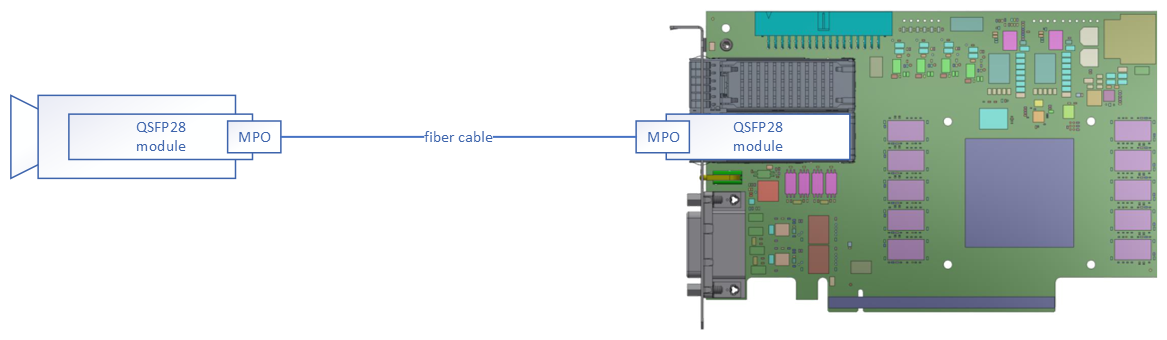
- 光ファイバーケーブルは、12ファイバーのMPOケーブルタイプBで接続された2つのQSFP28モジュールで構成されています。
情報
QSFP28モジュールは、SR4またはPSM4のタイプである必要があります。
- エンコーダ信号(ラインートリガー)がカメラに接続されています。
- フレームトリガーは、D-sub 26ケーブル(フロントGPIOコネクタ)を介してフレームグラバーのフロントGPIOコネクタに接続されます。
- Framegrabber SDKバージョン5.11.8以降がインストールされています。
- ドライバーはFramegrabber SDKインストーラーによって更新されており、バージョン2.5.5.0以降です。
情報
必要なすべてのツール(microDisplay X、microDiagnostics、pylon Firmware Updater、ドライバー、アプレット)は、Framegrabber SDKに含まれています。
ソフトウェアおよびファームウェアバージョンの確認#
このセクションでは、ソフトウェアバージョン、ドライバーバージョン、カメラファームウェアを確認する方法と、それらの確認場所について説明します。
Framegrabber SDKおよびドライバ#
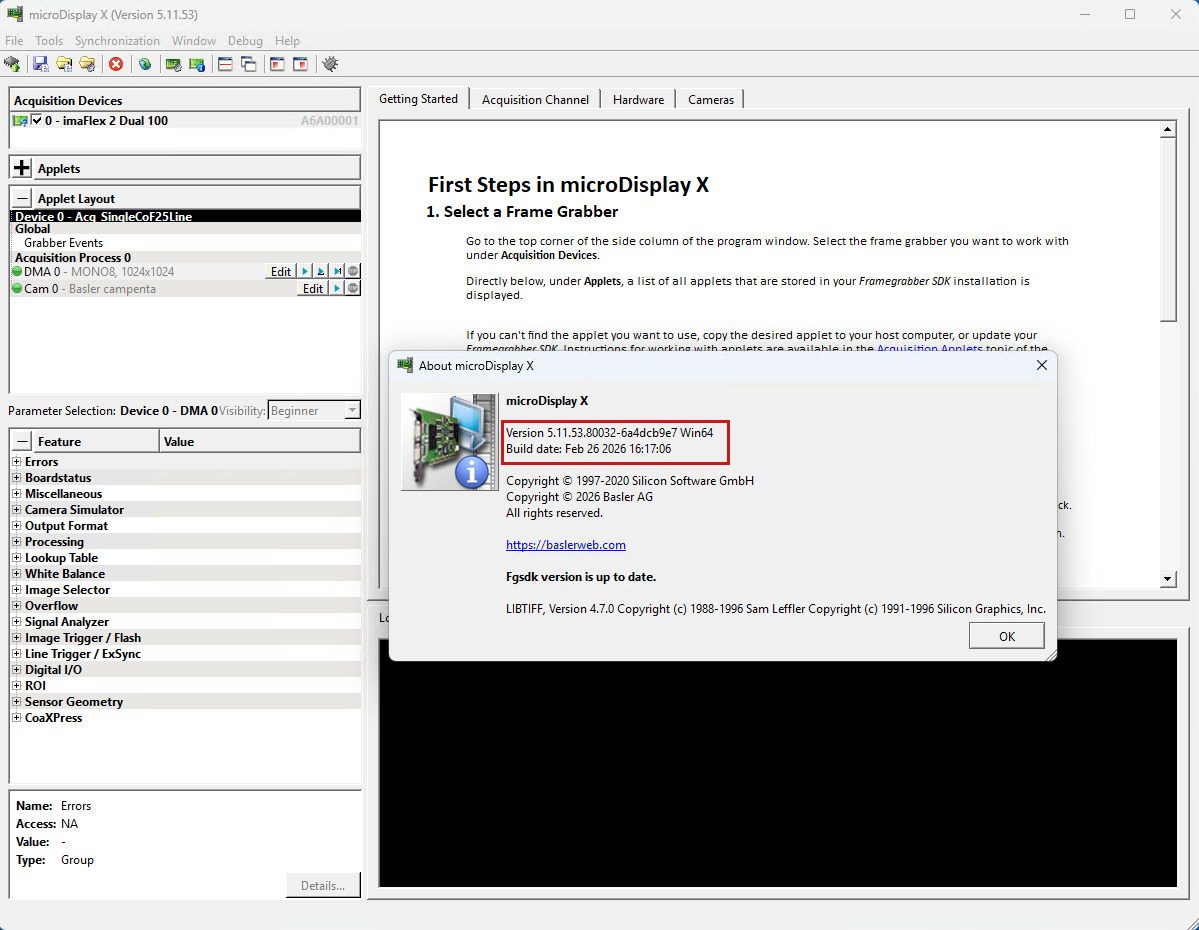
microDisplay Xでは、インストールされているFramegrabber SDKのバージョンを[ヘルプ] > [バージョン情報]で表示できます:
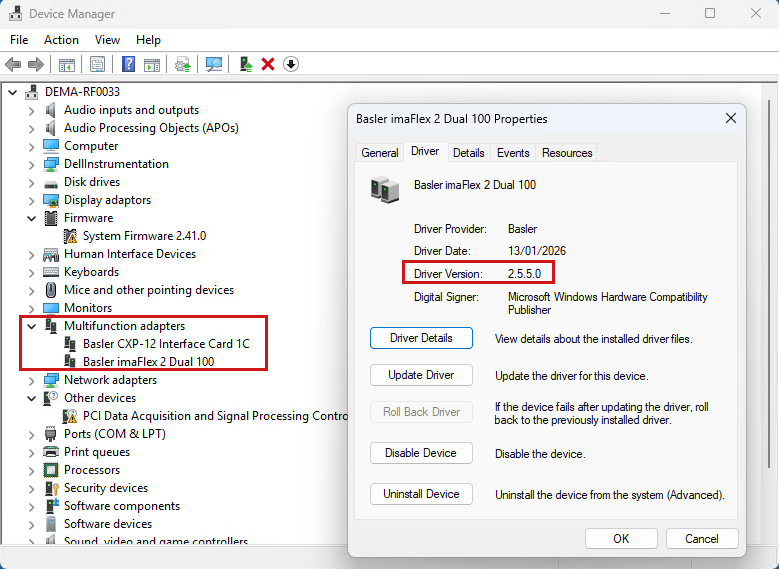
Windowsのデバイスマネージャーでドライバーバージョンを表示できます。フレームグラバーは多機能アダプターとして表示されます:
カメラファームウェア#
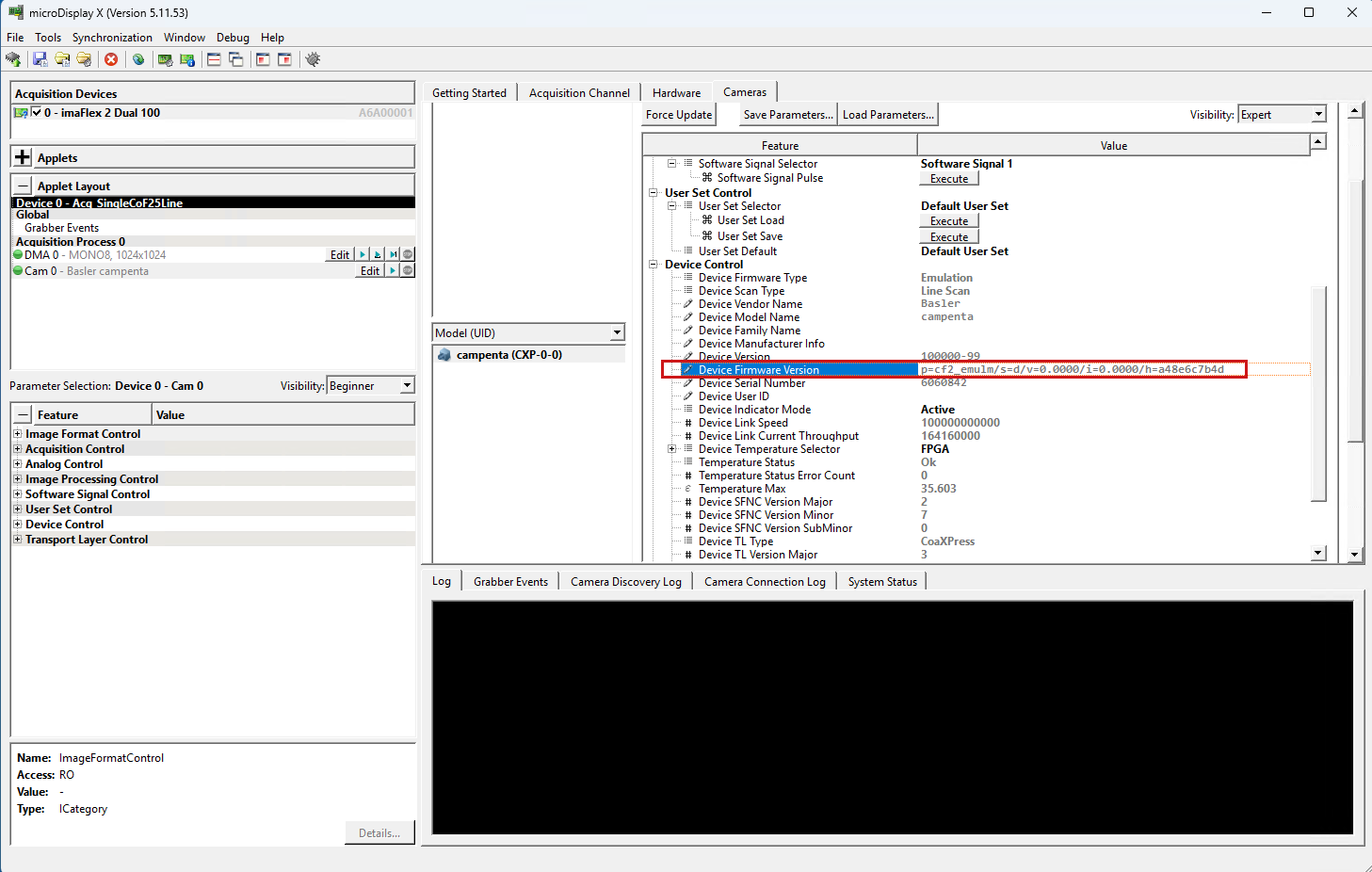
microDisplay Xで[Camera]タブを開き、GenICamを選択すると、カメラのファームウェアバージョンを表示できます:
ハードウェアの取り付け#
フレームグラバーのインストール#
警告 – 感電の危険
通電した状態でフレームグラバーを取り付けると、感電するおそれがあります。重傷を負うか、死亡するおそれがあります。
- フレームグラバーを取り付ける前に、コンピューターおよび接続されているデバイスの電源を切り、コンピューターからすべての電源ケーブルを抜いてください。
- 電源を入れる前に、コンピューターのケースを閉じてください。
注意 – 静電気放電により、電子部品が損傷するおそれがあります。
- フレームグラバーに触れる前に、金属製の水道の蛇口などに触れるなどして、身体の静電気をアースに逃がしてください。
- 取り付け中は、静電気防止リストストラップなどを装着して、身体が適切にアースされていることを確認します。
注記 – 過熱により、フレームグラバーやその他のコンポーネントが破損するおそれがあります。
コンピューター内で適切な換気システムを使用し、フレームグラバーと他のカードの間に十分な空きスペースを確保してください。アクティブ冷却機能を備えたボードの場合は、カード間に少なくとも1つの空きスロットが必要です。
情報
-
冷却プレートの破損を防ぐため、フレームグラバーは回路基板の端とスロットブラケットのみを持ち、挿入する際もその部分のみに力を加えてください。
-
フレームグラバーが最大速度を発揮できるように、PCIeスロットには少なくとも16レーンの配線があり、PCIe Generation 3(Gen 3)以上をサポートしている必要があります。
- Windowsの高速スタートアップ機能を無効にしてください。www.windowscentral.comを参照してください。
- コンピューターをシャットダウンします。
- コンピューターを電源から切り離します。
-
空いているPCIe(Gen 3.0)x16対応スロットにフレームグラバーを差し込みます。
情報
フレームグラバーが傾いておらず、完全に挿入されていることを確認してください。
-
8ピンのメスのコンピューター電源コネクターをフレームグラバーに差し込みます。コンピューターに一致する電源コネクターがない場合は、アダプターを使用してください。
- フレームトリガーをフレームグラバーのフロントGPIOコネクタに接続します。
- コンピューターを電源コンセントに再接続します。
- コンピューターを起動します。
カメラの接続#
CoFカメラをCoFフレームグラバーに接続する手順は以下のとおりです。
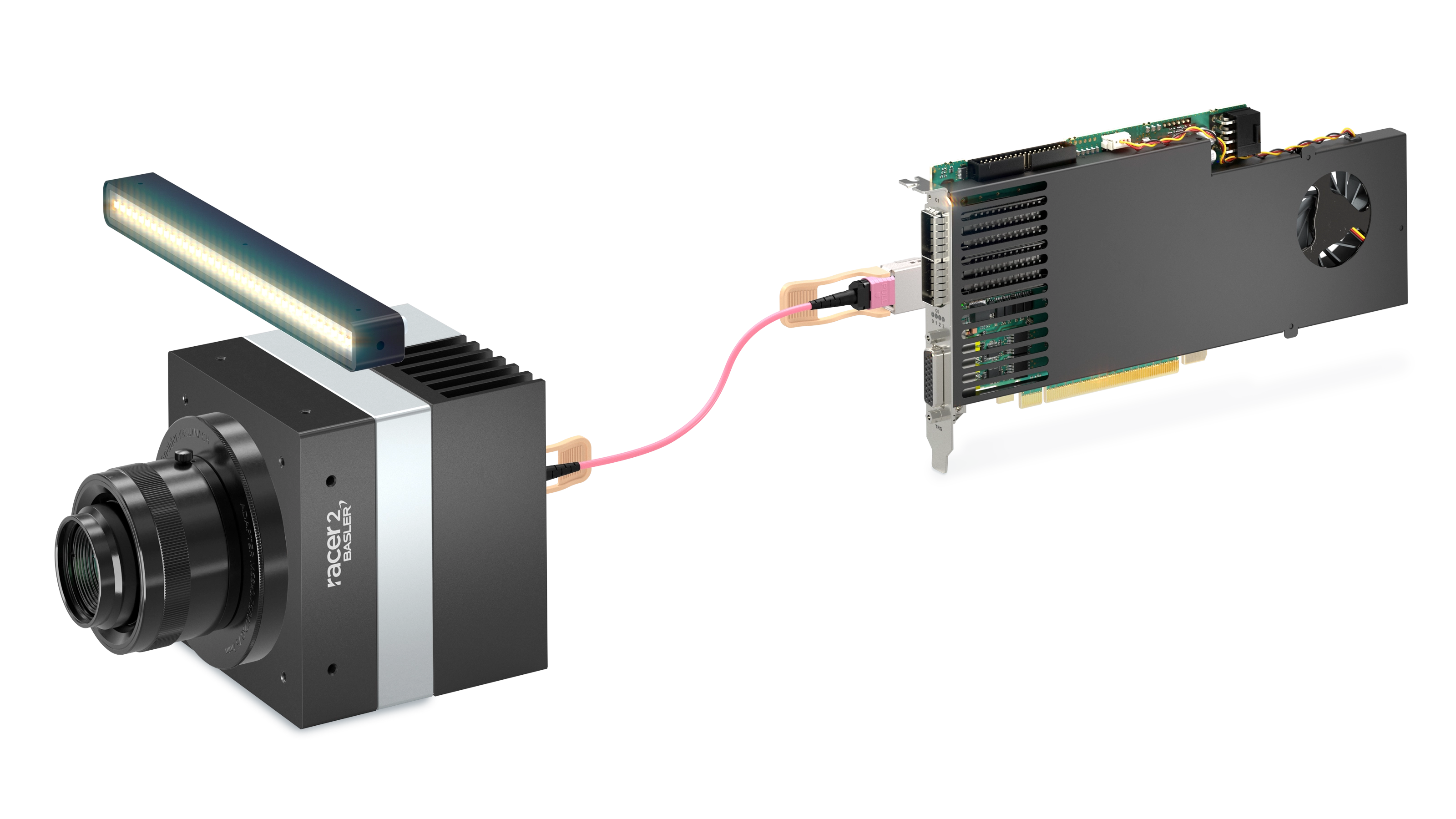
- トランシーバーモジュールが取り付けられた光ファイバーケーブルを使用して、カメラをフレームグラバーに接続します。
- 電源をカメラに接続します。
- エンコーダーをGPIOラインに接続します(例:相Aをライン2に、相Bをライン3に接続します。Encoder Controlも参照してください)。
要件#
カメラをCoFフレームグラバーに接続するには、次のハードウェアが必要です。
- 2つの Basler Moduls QSFP28 100G SR4 MPO 100m
- 1本の Basler Cable Optical, MPO, 8x PC/F
- 1台のCoaXPress-over-Fiberカメラ(例:Basler racer 2 XLカメラの r2T16416-500cm)
光ファイバーケーブルへのQSFP28モジュールの接続#
警告 – レーザーの安全性に関する指示 
負傷を避けるため、常に次の安全に関する注意事項に従ってください。
光ファイバー接続では、赤外域のレーザー放射が放出されます。レーザー放射は目に見えず、直接目を露出させると目を損傷するおそれがあります。開いたファイバーの端やアクティブな光ポートを絶対に覗き込まないでください。取り付け、メンテナンス、または清掃を行う前に、必ず接続を切り離すか、安全にシャットダウンしてください。ファイバーの端材は慎重に廃棄してください。
情報
QSFP28ファイバーモジュールの着脱回数には制限があります。一般的な目安は500回です。この回数を超えた場合は、モジュールを交換する必要があります。
情報
MPOコネクターの着脱回数には制限があります。一般的な目安は50回です。この回数を超えた場合は、ケーブルを交換する必要があります。
光ファイバーコネクターは、一般的な産業用電気コネクターとは異なる規格に準拠しています。重要な点の1つは、嵌合のたびに適切なお手入れ(クリーニング)が必要であるということです。ファイバー端面に埃や汚れが付着していると、コネクターが簡単に損傷し、パフォーマンスや寿命に大きな影響を与える可能性があります。
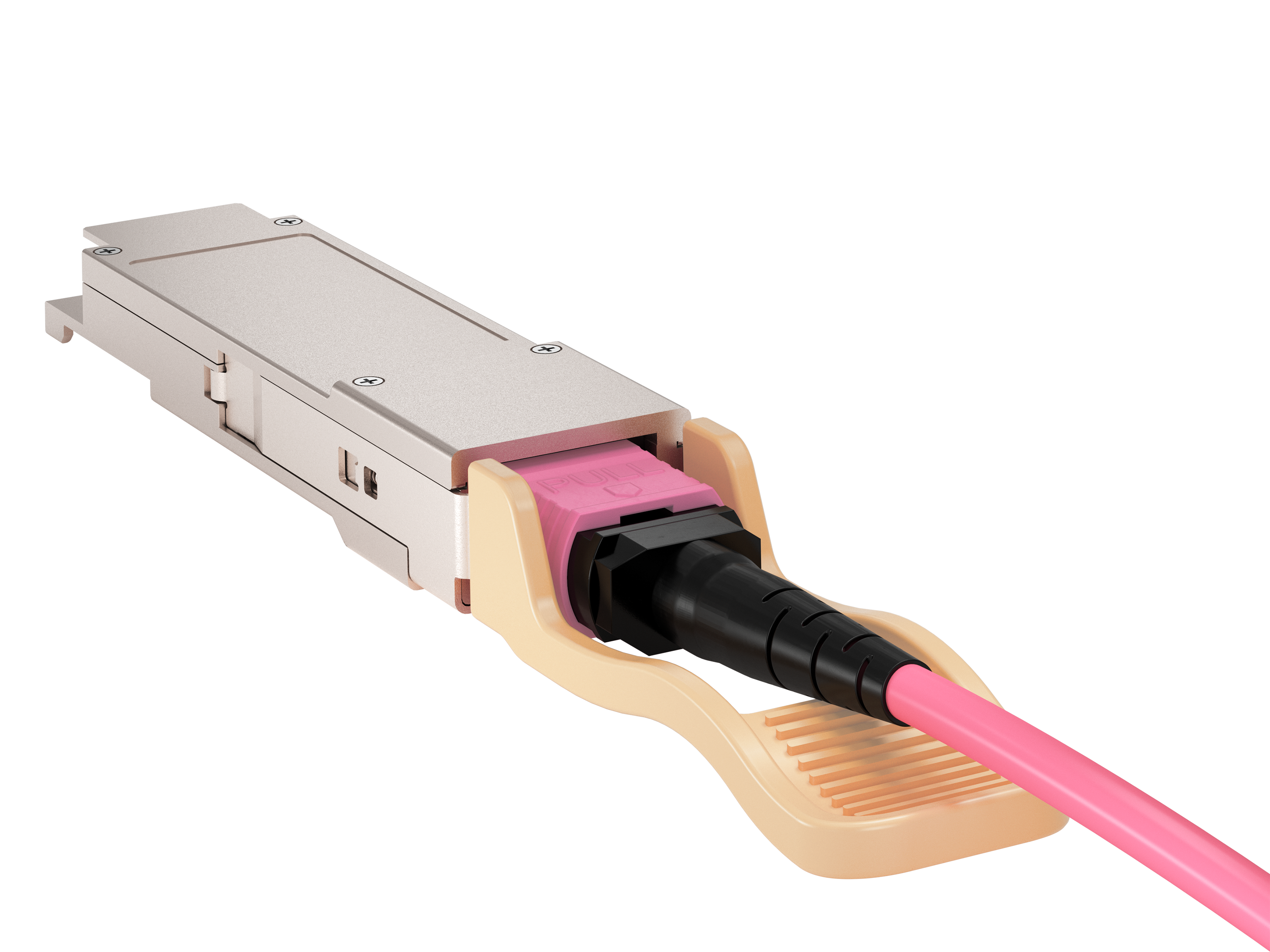
光ファイバーケーブルがトランシーバーモジュールに常時固定されていないケーブルを使用している場合は、次の手順を実行します。
- 適切なツールを使用して、QSFP28モジュールの光ファイバーポートを清掃します。
- 適切なツールを使用して、光ファイバーケーブルを清掃します。
- 光ファイバーケーブルをQSFP28モジュールに挿入します。
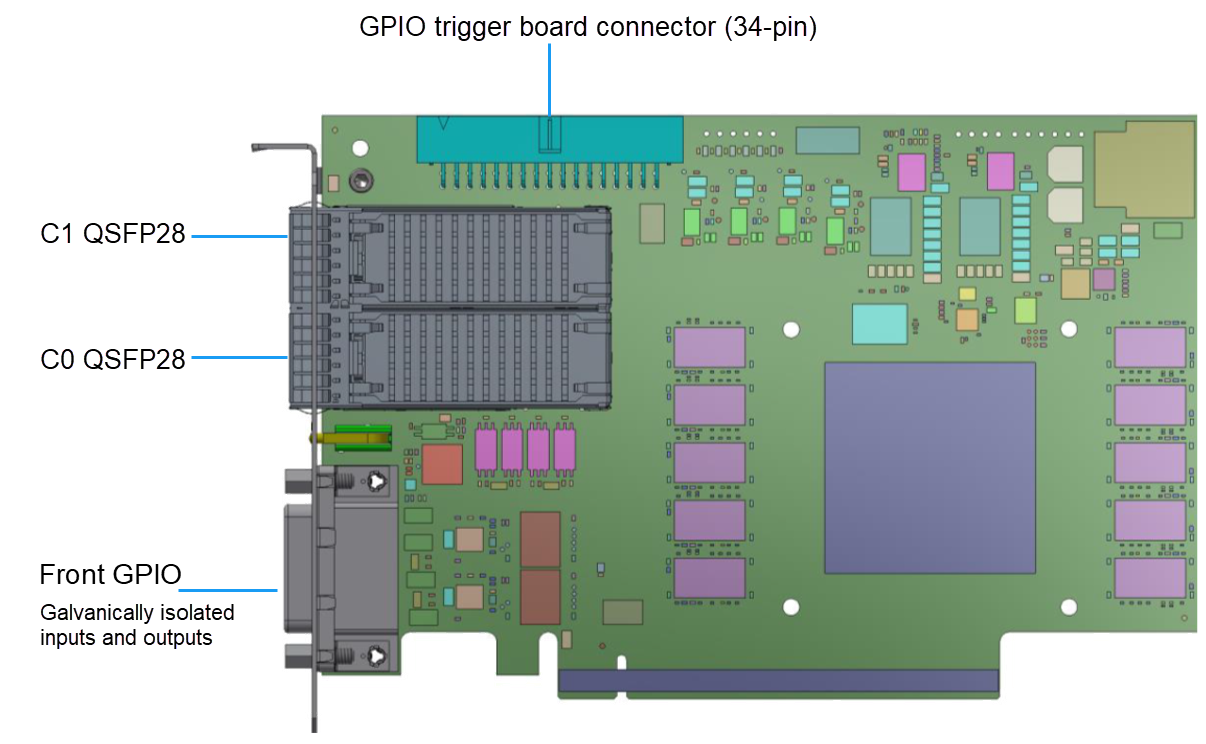
imaFlex 2 Dual 100のコネクタ#
正しいポートへのカメラの接続#
情報
Baslerでは、次のポートの順序を推奨しています。
- CoF LEDシグナリングのすべての機能を使用するには、カメラのQSFP28モジュールをフレームグラバーのC0コネクター(QSFP28モジュールを搭載)に接続します。C0コネクターには4つのLEDがありますが、C1コネクターには1つのLEDしかありません。
- マスタースレーブトポロジの場合は、マスターフレームグラバーのC1ポートをスレーブフレームグラバーのC0ポートに接続します(どちらもそれぞれのQSFP28モジュールを使用)。
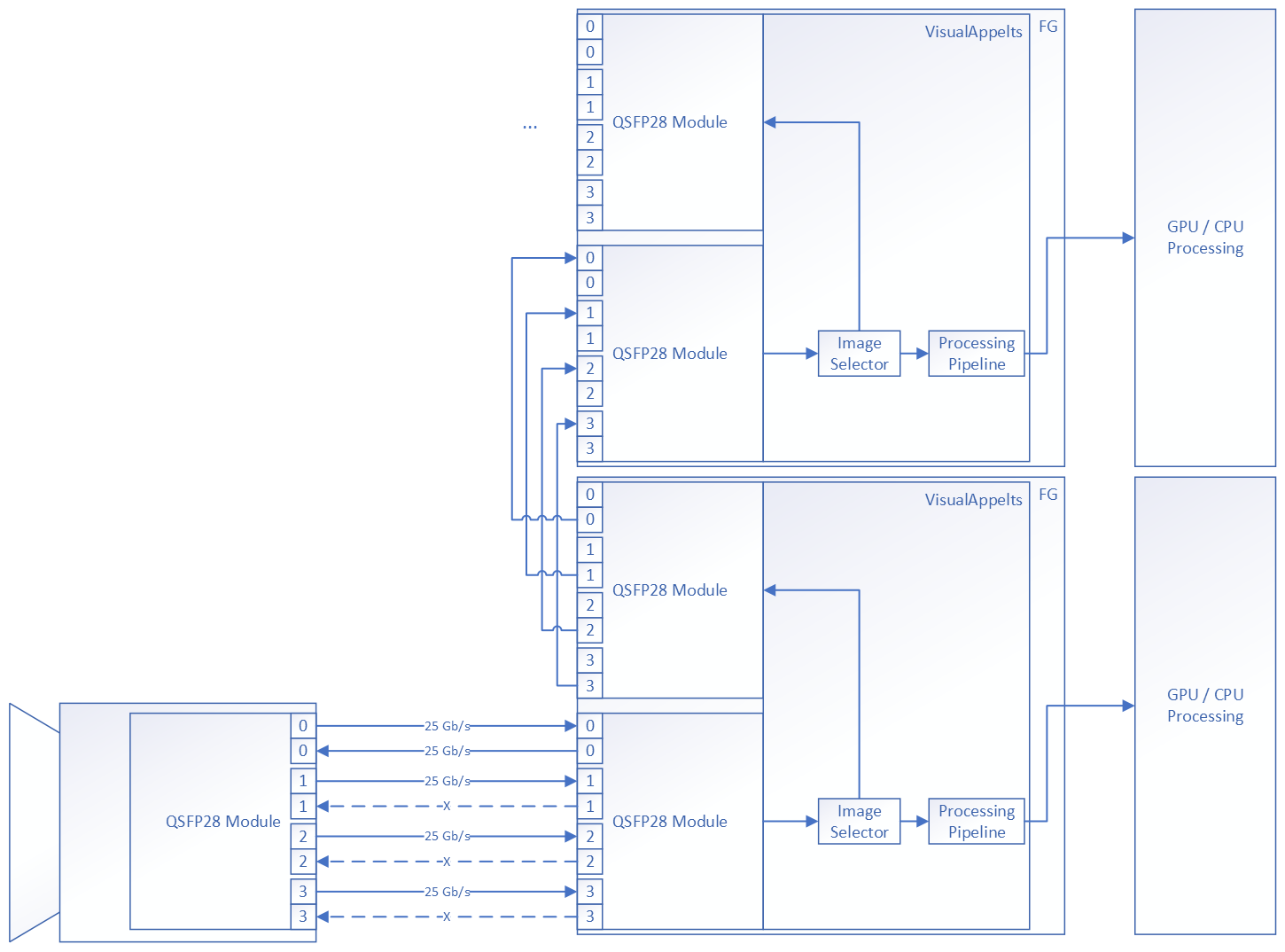
フレームグラバーは一般的に非常に柔軟性が高く、カメラをC1に接続し、データ転送接続をC0に接続することも可能です。強制的な固定順序はなく、ユーザーのニーズに応じてコネクターを選択できます。ただし、FPGAプロセッサーのアプレットは、選択した相互接続と一致している必要があります。imaFlex 2 Dual 100のベースラインスキャンアプレットでは、カメラをC0コネクターに接続する必要があります。
情報
ファイバー接続を機能させるには、カメラとフレームグラバーの両方に電源を供給する必要があります。フレームグラバーは主に8ピン電源プラグから電源供給を受けます。電源供給コネクターは、PCの電源がオフのとき、かつPCが電源から切り離されているときに相互接続する必要があります。
QSFP28およびMPOコネクターはホットプラグ対応です。
ソフトウェアのインストール#
Framegrabber SDKのインストール#
Framegrabber SDKバージョン5.11.8以降をダウンロードします。ファイル名をダブルクリックしてFramegrabber SDKのセットアップを開始します。インストール時に、次のコンポーネントを選択します。
- ドライバー
- imaFlex 2 Dual 100用の取得アプレット
- pylon Firmware Updater
- GUI Tools
Framegrabber SDKのインストール後、以下を確認します。
- 少なくともimaFlex 2 Dual 100用のプラットフォームがインストールされていることを確認します。
- Framegrabber SDKのインストールディレクトリへのパスが次のように設定されていることを確認します
BASLER_FG_SDKコンピュータの環境変数に設定します。
フレームグラバーが正しいPCIeスロットに取り付けられているかどうかの確認#
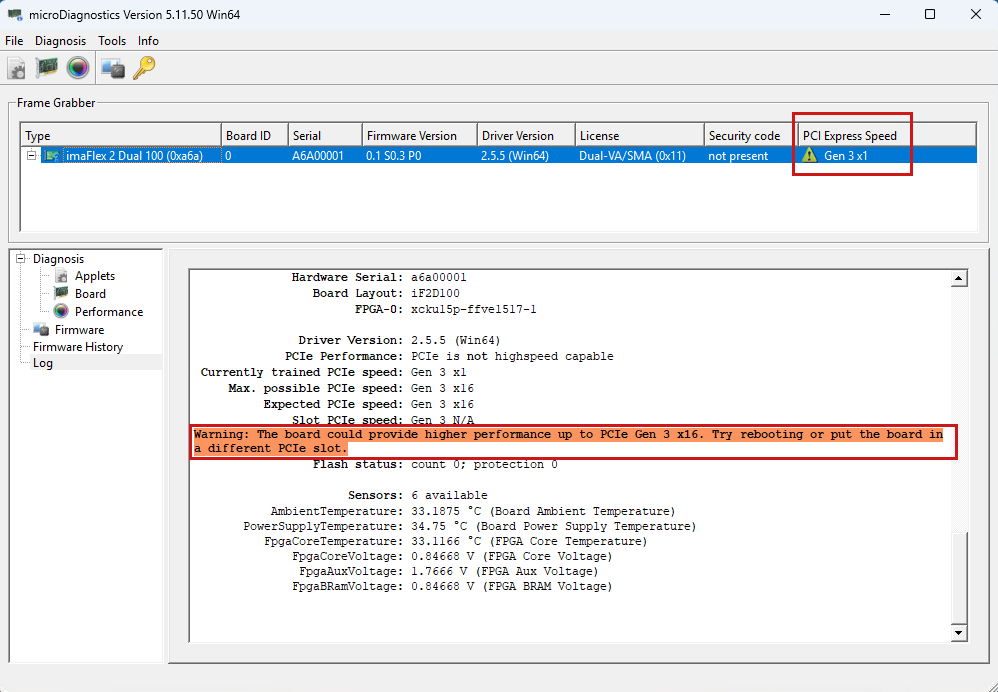
必要な帯域幅に達しない場合、フレームグラバーが誤ったPCIeスロットに装着されている可能性があり、必要なPCIe (Gen 3.0) x16ではなく、PCIe (Gen 3.0) x8以下しか利用できない可能性があります。
これを確認するには、次の手順に従います。
- microDiagnosticsを起動します。
- PCIe Gen3 x16が表示されているかどうかを確認します。問題がある場合、次のスクリーンショットのようになります(必要な帯域幅に達していません)。
カメラファームウェアのアップデート#
カメラファームウェアのアップデートが必要な場合があります。これを確認するには、次の手順に従います。
- カメラをフレームグラバーに接続し、電源を供給します。
- microDisplay Xを起動します。
- microDisplay XでCameraタブを開き、Device Versionを確認します。
より新しいファームウェアが利用可能な場合は、pylon Firmware Updaterツールを使用して、最新の.gufファイルをカメラに読み込ませます。
pylon Firmware Updater#
pylon Firmware Updaterは、Framegrabber SDKと一緒にインストールできるコマンドラインツールです。これを使用して、Baslerカメラのファームウェアをアップデートできます。
Baslerカメラのファームウェアをアップデートするには、アップデートされたファームウェアが含まれている.gufファイルが必要です。
You can find the pylon Firmware Updater at <Framegrabber SDK installation directory>/bin/pylonFirmwareUpdater.exe. Run it from the command line.
pylon Firmware Updaterでは、次のコマンドを使用できます。
| コマンド | 説明 |
|---|---|
| update [GUF File] | 指定した.gufファイルを使用してカメラのファームウェアアップデートを実行します |
| info [GUF File] | .gufファイルに保存されている情報を提供します。 |
| リスト | 接続されているすべてのカメラデバイスのリストを提供します。 |
| バージョン | pylon Firmware Updaterのバージョンを提供します。 |
カメラをアップデートするには、次の構文で update コマンドを使用します。
1つまたは複数の.gufファイル(ワイルドカード*を使用可能)へのパス、または.gufファイルを含むディレクトリへのパスを指定できます。
アップデートは1台ずつ順番に適用されます。各カメラに対して、指定された.gufファイルの中から最新の適用可能なファームウェアが適用されます。
アップデートコマンドオプション#
イメージ update コマンドは、次のオプションで変更できます。
| オプション | 説明 |
|---|---|
| –dry-run | カメラへの書き込みを行わずに、アップデートに必要な手順を実行します。 |
| –no-logo | ロゴを非表示にします。 |
| -q | –quiet | コンソール出力を取り消します。 |
| -v | –verbose | 各アクションの詳細を記述します。 |
| -f | –filter | モデル名、ユーザー定義名、シリアル番号の各カテゴリのフィルター文字列によってカメラをフィルターします。 このオプションは複数回使用できます。 このオプションを省略した場合は、すべてのカメラが選択されます。 |
| –force-update | カメラの意図的なファームウェアダウングレードを許可します。このオプションがない場合、アップデートのみが可能です。 このオプションは、正確に1台のカメラにのみ適用できます。 |
| –force-version | カメラのバージョンを.gufファイルの定義済みバージョンに設定します。 このオプションは、正確に1台のカメラにのみ適用できます。 |
例:
PylonFirmwareUpdater update --dry-run daA2500_14uc_r_1.4.0.250701.guf
PylonFirmwareUpdater update daA2500_14uc_r_1.4.0.250701.guf
PylonFirmwareUpdater update --dry-run *.guf
PylonFirmwareUpdater update -f daA2500 -f puA2500 *2500*.guf
リストコマンド#
イメージ list コマンドには、接続されているすべてのカメラのリストが表示されます。
2台のカメラの場合、出力は次のようになります。
c:\PylonFirmwareUpdater.exe list
pylon Firmware Updater 11.2.2.823

Model SerialNumber DeviceUserID DevClass InUse FirmwareVersion
boA4112-68cm 40072910 GTC/Basler/CXP No
p=xc2b_imx253c/s=d/v=5511.7/i=5511.7/h=4f8c68b

boA1936-400cc 40184836 GTC/Basler/CXP No
p=xc2b_imx421c/s=r/v=1.0.0/i=6901.18/h=a7890af
TDIステージの確認とカメラのアライメント#
TDIステージを確認してカメラを調整するには、すべてのステージにわたって画像を取得します。次の手順を実行します。
- microDisplay Xを起動します。
- Acq_SingleCoF25Line アプレットをロードします。
- エリアモード用にカメラを設定します。このモードでは、カメラはトリガーなしのフリーランモードで動作します。
- カメラが Test Images を生成するように設定します。
- イメージの高さを 256 ライン(ステージ数)に設定するには、以下のように設定します。
FG_HEIGHT = 256. - 画像acquisitionを開始します。
正常に動作している場合は、斜めのグレーのグラデーションを持つ画像が表示されます。

トリガーの接続#
スムーズな動作のために、トリガーは不可欠です。2種類のトリガーが使用されます。
- Line trigger: ラインのトリガーに使用します。通常、カメラに接続されます。
- Frame trigger: ラインをフレームに組み立てるために使用します。通常、フレームグラバーに接続されます。
imaFlex 2 Dual 100 へのトリガーの接続に関する詳細については、imaFlex 2 Dual 100 documentation を参照してください。
ライントリガーの接続#
次のようにエンコーダーをカメラに接続します。エンコーダー操作では、たとえば相 A をライン 2 に、相 B をライン 3 に接続します。

| ピン | ライン | 機能 |
|---|---|---|
| 1 | - | 24 VDCカメラ電源 |
| 2 | - | 24 VDCカメラ電源 |
| 3 | Line 1 - | 汎用I/O(GPIO)ライン1、マイナスピン |
| 4 | Line 1 + | 汎用I/O(GPIO)ライン1、プラスピン |
| 5 | - | 汎用I/O(GPIO)ライン用グランド |
| 6 | Line 2 - | 汎用I/O(GPIO)ライン2、マイナスピン |
| 7 | Line 2 + | 汎用 I/O (GPIO) ライン 2、プラスピン |
| 8 | - | カメラ電源用接地 |
| 9 | - | カメラ電源用接地 |
| 10 | - | 接続なし |
| 11 | Line 3 - | 汎用 I/O (GPIO) ライン 3、マイナスピン |
| 12 | Line 3 + | 汎用 I/O (GPIO) ライン 3、プラスピン |
情報
-
汎用 I/O (GPIO) ラインのグラウンド (ピン 5) とカメラ電源のグラウンド (ピン 8 および 9) は、カメラ内部で接続されています。
-
カメラの電源 (ピン 1 および 2) とグラウンド (ピン 8 および 9) の両方のピンを必ず接続してください。
ライン 2 にはピン 6 および 7 の差動信号を、ライン 3 にはピン 11 および 12 の差動信号を使用します。信号が受信されていることを確認するには:
- microDisplay Xを起動します。
- Acq_SingleCoF25Line アプレットをロードします。
- Camera タブの Encoder Control カテゴリに移動します。
- エンコーダーを次のように設定します。
EncoderSelector = Encoder0;EncoderSourceA[Encoder0] = Line2;EncoderSourceB[Encoder0] = Line3;EncoderMode[Encoder0] = FourPhase;EncoderOutputMode[Encoder0] = PositionUp;
- 製造ラインを移動させながら Encoder Control を確認します。この機能は、順方向、逆方向、または停止のいずれの状態にあるかを示します。
EncoderValue は、順方向に何ステップ進んだかを示します。
この情報を使用して、エンコーダー信号がカメラに正しく到達していることを確認できます。
フレームトリガーの接続#
フレームトリガーをフレームグラバー(D-sub 26 フロント GPIO コネクターなど)に接続します。
フロント GPIO コネクターのピン配置:
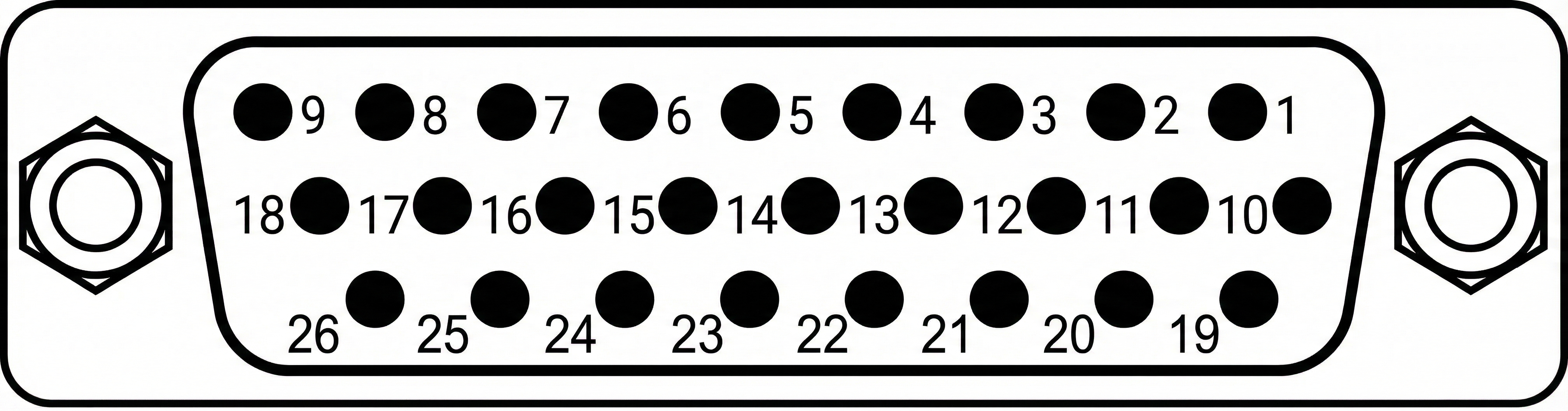
| PIN番号 | ガルバニック 絶縁 | Signal Type | Reference Signals |
|---|---|---|---|
| 1 | はい | FrontGpi6 | VccIn47 (ピン 19) GndIn47 (ピン 20) |
| 2 | はい | FrontGpi7 | VccIn47 (ピン 19) GndIn47 (ピン 20) |
| 3 | はい | FrontGpi2 | VccIn03 (pin 21) GndIn03 (pin 22) |
| 4 | はい | FrontGpi3 | VccIn03 (pin 21) GndIn03 (pin 22) |
| 5 | はい | FrontGpo6 | VccOut47 (pin 23) GndOut47 (pin 24) |
| 6 | はい | FrontGpo7 | VccOut47 (pin 23) GndOut47 (pin 24) |
| 7 | はい | FrontGpo2 | VccOut03 (pin 25) GndOut03 (pin 26) |
| 8 | はい | FrontGpo3 | VccOut03 (pin 25) GndOut03 (pin 26) |
| 9 | はい | 5VOutIso (絶縁5V出力、最大500 mA) | GndOutIso (pin 18) |
| 10 | はい | FrontGpi4 | VccIn47 (ピン 19) GndIn47 (ピン 20) |
| 11 | はい | FrontGpi5 | VccIn47 (ピン 19) GndIn47 (ピン 20) |
| 12 | はい | FrontGpi0 | VccIn03 (pin 21) GndIn03 (pin 22) |
| 13 | はい | FrontGpi1 | VccIn03 (pin 21) GndIn03 (pin 22) |
| 14 | はい | FrontGpo4 | VccOut47 (pin 23) GndOut47 (pin 24) |
| 15 | はい | FrontGpo5 | VccOut47 (pin 23) GndOut47 (pin 24) |
| 16 | はい | FrontGpo0 | VccOut03 (pin 25) GndOut03 (pin 26) |
| 17 | はい | FrontGpo1 | VccOut03 (pin 25) GndOut03 (pin 26) |
| 18 | いいえ | GndOutIso (5VOutIso用絶縁グラウンド) | 5VOutIso (pin 9) |
| 19 | はい | VccIn47 (入力グループ47用絶縁VCC) | GndIn47 (pin 20) |
| 20 | はい | GndIn47 (入力グループ47用絶縁グラウンド) | VccIn47 (ピン 19) |
| 21 | はい | VccIn03 (入力グループ 03 用の絶縁型 VCC) | GndIn03 (ピン 22) |
| 22 | はい | GndIn03 (入力グループ 03 用の絶縁型グラウンド) | VccIn03 (ピン 21) |
| 23 | はい | VccOut47 (出力グループ 47 用の絶縁型 VCC) | GndOut47 (ピン 24) |
| 24 | はい | GndOut47 (出力グループ 47 用の絶縁型グラウンド) | VccOut47 (ピン 23) |
| 25 | はい | VccOut03 (出力グループ 03 用の絶縁型 VCC) | GndOut03 (ピン 26) |
| 26 | はい | GndOut03 (出力グループ 03 用の絶縁型グラウンド) | VccOut03 (ピン 25) |
| シールド | いいえ | GND (非絶縁ボードグラウンド / アース / ブラケット) |
使用するフレームトリガーピンに加えて、GND と VCC の入力も確実に接続されていることを確認してください。フロント GPIO コネクタの場合、これは VccIn03 と GndIn03 も基準信号の VCC と GND に接続する必要があることを意味します。
5 V 信号を使用しており、他に利用できる基準がない場合は、両方のシステムのグラウンドを接続し、GND を GndIn03 に、5VOutIso を VccIn03 に接続します。
アプレットの Signal Analyzer を使用して、フロント GPIO が正しく接続されているかどうかを確認できます。アプレットを microDisplay X にロードし、次の値を設定します。
FG_SIGNAL_ANALYZER_0_SOURCE = FG_SIGNAL_FRONT_GPI_0FG_SIGNAL_ANALYZER_CLEAR = 1
外部ハードウェアを使用して入力にパルスを送信します。次を使用できます。 FG_SIGNAL_ANALYZER_0_PULSE_COUNT パルスがカウントされたかどうかを確認するには、
使用 FG_SIGNAL_ANALYZER_0_PERIOD_CURRENT 信号の周期を分析するには、
トラブルシューティング#
次の表に、一般的な症状、考えられる原因、および初期対応をまとめます。
| 症状 | 考えられる原因 | 対策 |
|---|---|---|
| カメラが検出されません | - カメラに電源が供給されていません - カメラがフレームグラバーに正しく接続されていません - 間違ったバージョンの Framegrabber SDK がインストールされています | - 電源を確認してください - 光ファイバーケーブルを確認してください - Framegrabber SDK のバージョンを確認してください |
| 画像なし | - カメラが Line Mode になっており、トリガーがありません | - エリアモードでカメラをテストしてください - トリガーが正しく接続されているか確認してください |
| エンコーダーがカウントしていません | - ピン配置が正しくありません - 入力信号が一致していません(差動、シングルエンド、および電圧レベル) | - ピン配置を確認してください - 差動接続してください |
| フレームグラバーの帯域幅が低すぎます | フレームグラバーが間違った PCIe スロットにインストールされています | microDiagnostics で PCIe スロットを確認してください |
| - PC がフリーズする - Acquisition Start 後にブルースクリーンが発生する | フレームサイズが小さいため、割り込み負荷が高すぎています | フレームハイトとフレームレートを確認してください。フレームハイトを増やすなどして、フレームレートを 100 000 未満に維持してください。 |