帯域幅マネージャー#
Bandwidth Managerは、pylon ViewerのWindowsおよびLinuxバージョンでのみ使用できます。Toolsメニューから、またはDevicesペインでカメラを右クリックして、Bandwidth Managerを開くことができます。
情報
帯域マネージャーは、1GigE、5GigE、および10GigE のネットワークアダプターをサポートします。使用可能な帯域幅を決定し、それに応じてカメラ間で分配できます。
複数のカメラを1台のコンピューターに接続すると、カメラが使用可能な帯域幅で互いに競合するため、パフォーマンスの問題が発生することがあります。このような競合を回避するには、帯域マネージャーを使用します。次の情報が一目で確認できます。
- システムおよびそこに接続されているカメラに設置されているUSB 3.0ホストコントローラーおよびGigEネットワークアダプター
- USB 3.0ホストコントローラーあたりの使用可能な総帯域幅(概算)
- カメラによって送信され、コンピューターによって受信されたデータの量
- カメラによって送信され、コンピューターによって受信される1秒当たりのフレーム数(fps)
- 撮影された画像の総数
- 送信エラーの数(不完全な画像やスキップされた画像など)
この情報に基づいて、帯域マネージャーを使用して、接続されているカメラの帯域幅消費量を最適化できます。
帯域マネージャーの概要#
[帯域マネージャー]ダイアログには、お使いのコンピューター内のすべてのUSB 3.0ホストコントローラーとGigEネットワークアダプター、およびそれぞれに接続されているカメラが一覧表示されます。USB 3.0ホストコントローラーまたはネットワークアダプターで使用可能な総帯域幅の一部を各カメラに割り当てることができます。このように、実際に必要なだけ帯域幅をカメラに割り当てられるので、他のデバイス用のリソースを解放できます。
USB 3.0カメラ:Bandwidth (MB/s)列には、カメラが接続されているUSB 3.0ホストコントローラーで使用可能な帯域幅も表示されます。これは、利用可能な最大帯域幅の概算値です。
GigEカメラ:ネットワークアダプターごとにOptimizeボタンがあります。このボタンをクリックすると、このネットワークアダプター上の選択されたすべてのカメラの帯域幅を最適化できます。ボタンを有効にするには、少なくとも1台のカメラを選択する必要があります。
GigEカメラがコンピューターに接続されている状態で初めてBandwidth Managerを開くと、すべてのGigEカメラを一度に最適化できるダイアログが表示されます。
最適化には、Packet SizeおよびInter-Packet Delay設定の調整が含まれます。スイッチなどを介して複数のカメラが1つのネットワークアダプターに接続されている場合、利用可能な帯域幅は選択されたすべてのカメラ間で共有されます。
カメラの設定をご自身で変更する場合は、Features - Allペインに移動してください。ROIのサイズ、Pixel Formatなど、帯域幅の消費に影響を与えるカメラ設定がいくつかあることに注意してください。
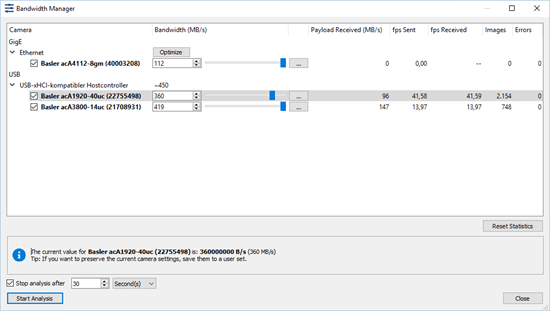
帯域幅消費量の最適化#
システムのパフォーマンスを最適化するには、まず現状の分析から始めます。概要を把握したら、帯域幅の消費を微調整できます。各カメラに割り当てられた帯域幅をその場で変更できるため、複数のデバイス間で最適なバランスを非常に簡単に見つけることができます。
帯域幅の消費を最適化するには、
- 分析するカメラ上のあらゆる録画だけでなく連続画像取り込みも停止します。
- 帯域マネージャーを開きます。
- 帯域幅を分析するカメラを選択します。
-
Start Analysisをクリックします。
カメラの右側の欄にデータが入力されます。Imagesの列には、撮影された画像の総数が表示されます。完全に転送されていない画像や完全にスキップされた画像がある場合は、Errorsの列に表示されます。
分析の実行中に、スピンボックスまたはその横のスライダーを使用して、特定のカメラで使用可能な帯域幅を変更できます。表示されたデータで、加えた変更の影響が即座にわかります。情報
帯域幅の値は、カメラに使用可能な上限値であり、超えることはできません。したがって、カメラが帯域幅を最大限に使用していない場合、帯域幅を変更しても目に見える影響はありません。カメラがフレームレートを達成できないほど低くした場合にのみ、受信したペイロード(MB/s)の値がどのくらい低下したか表示されます。同時に送信されるオーバーヘッドは含まれないため、ペイロード値は通常、使用可能な帯域幅よりも低くなることに注意してください。
-
結果に問題がなければ、[分析を停止]をクリックします。
[帯域マネージャー]ダイアログには、選択したカメラの現在の帯域幅が表示されます。他のアプリケーションで使用するためにメモを取ることができます。
分析を手動で停止する代わりに、[次の後に分析を停止]オプションを選択して、分析を自動的に停止するまでの時間を指定できます。これは、長期間にわたってデータを収集する場合に便利です。情報
Bandwidth Managerダイアログでは、視認性を高めるために帯域幅がMB/sで表示されます。カメラに応じて、これはDevice ControlカテゴリのDevice Link Throughput Limit値、またはDevice Transport LayerカテゴリのDevice Current Throughput値に対応します。これらの値はいずれもB/sで表されます。
-
オプション:現在のカメラ設定をuser setに保存して保持します。保存しない場合、カメラの接続を解除すると、帯域幅の設定をやり直す必要があります。