コマンドライン経由のフラッシング#
You find GrabberFirmwareFlasher.exe in the Framegrabber SDK installation directory <Framegrabber SDK installation directory>/bin.
Grabber Firmware Flasher を使用すると、アップレット(*.dllまたは*.hapファイル)を特定のボードのフラッシュメモリの特定パーティションに書き込むことができます。以下を指定する必要があります:
- ボードインデックス(システム内)
- フラッシュメモリのパーティション
- アプレットファイルのファイル名(拡張子付き)
- The Grabber Firmware Flasher looks within your Framegrabber SDK software installation for the specified applet file (in directory <Framegrabber SDK installation directory>/firmware/<frame grabber type>
Grabber Firmware Flasher を起動するには:
-
bin ディレクトリに移動し、GrabberFirmwareFlasher.exe を実行します。
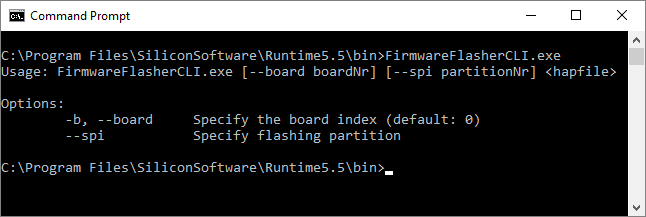
ヘルプ情報が表示されます:
-
ボードインデックス、メモリパーティション、およびアップレットファイル名を指定します。以下のコマンドを使用できます:
GrabberFirmwareFlasher.exe  --b <board_index>
                            --partition <flashing partition>
                            <name of applet file>
例:
GrabberFirmwareFlasher.exe --board 0 --partition 4 Acq_SingleBaseGray.dll -
Enterキーを押します。
ツールが指定されたアプレットで指定パーティションのフラッシュを開始します:

-
ボードを使用しているすべてのアプリケーションを再起動します:
- Framegrabber SDKのすべてのアプリケーション(microDisplay X、microDiagnostics、GenICam Explorer)を閉じます。
- それらを再度開いた後、アクティブとして設定したアプレットにアプリケーションからアクセスできるようになります。
microDisplay Xによるアップレットの設定(初期システムテスト (microDisplay X)を参照)またはFramegrabber APIを使用して続行できます。