FirmwareUpdater#
利用可能なすべてのオプションとパラメータの概要を取得するには、FirmwareUpdater ツールを以下の引数を指定して呼び出します。 --help オプション:
FirmwareUpdater --help
ファームウェアバージョンに関する一般情報#
ファームウェアバージョンは、次の3つの部分に分かれています。
- 動的ファームウェアバージョンは、メジャーバージョンとマイナーバージョンの形式で提供されます(例:1.0)。
- 静的バージョンはSで始まり、メジャーバージョンとマイナーバージョンの形式で提供されます(例:S1.2)。
- PCIeコアバージョンはPで始まり、メジャーバージョンの形式で提供されます(例:P0)。
ダイナミックファームウェアはアプレットに完全に統合されており、フラッシュされたファームウェアの一部ではありません。そのため、ダイナミックファームウェアのバージョンはファームウェアフラッシュファイルから省略されています。FirmwareUpdater では、スタティックおよび PCIe コアのバージョンのみが使用されます。
アプレットは特定の静的バージョンとのみ互換性があります。通常、Framegrabber SDK の各インストールには、アプレットに必要なバージョンに一致するファームウェアアップデートファイルが付属しています。PCIe コアはアプレットと同様に静的バージョンに依存します。新しい静的バージョンごとに 0 から始まります。たとえば、S1.1 P1 から S1.2 P0 へのアップデートは、PCIe コアバージョンのダウングレードを意味するものではありません。
情報
前世代の Basler フレームグラバー(microEnable 5 marathon シリーズ)とは異なり、アプレットはボードにフラッシュされません。アプレットは、インストールされているファームウェアバージョンに一致している限りロードできます。
ファームウェアの更新はパーティション分割されており、ファームウェアを安全に更新するために、2つのパーティションが用意されています。電源障害など、ファームウェアの更新プロセス中に何か問題が発生した場合は、片方のパーティションのみに障害が発生する可能性があります。他方のパーティションが自動的に使用されます。
ファームウェア更新の確認#
利用可能なアップデートを確認するには、オプションやパラメータを指定せずに FirmwareUpdater ツールを実行します。
FirmwareUpdater
次の例では、システムに2つのボードがあり、1つに更新が必要です。
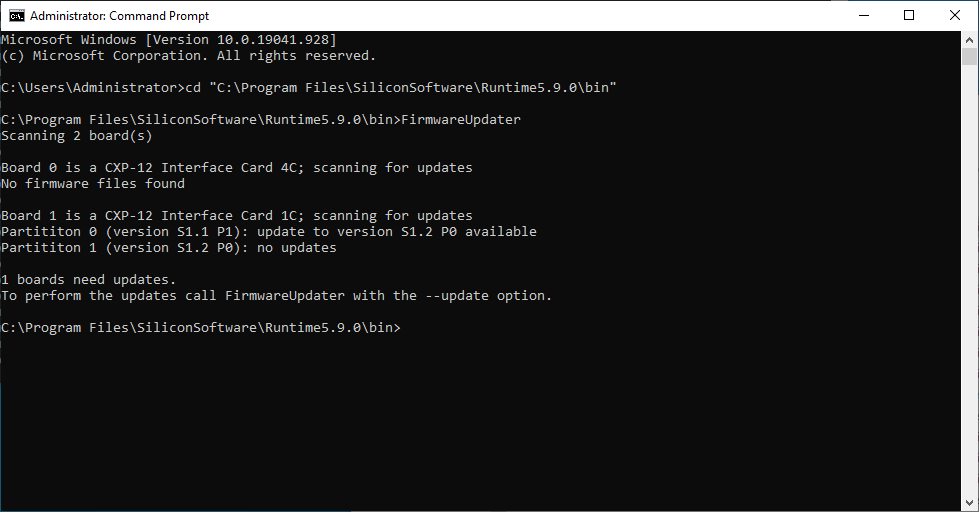
ファームウェアのアップデートが必要なボードがある場合、FirmwareUpdater ツールは短いメッセージを表示します。
ファームウェアのアップデート#
フレームグラバーのファームウェアをアップデートするには、以下を使用します: --update オプション:
FirmwareUpdater --update
情報
FirmwareUpdater が実行されているウィンドウを絶対に閉じたり、Ctrl+C を押したり、その他の方法でアップデートプロセスを中断したりしないでください。また、すべてのアップデートが完了する前にコンピュータをシャットダウンまたは電源オフしないでください。
アップデートプロセス中、アクティビティと進捗状況がシンプルなプログレスバーで表示されます。FirmwareUpdater はすべてのアップデートを自動的に実行します。
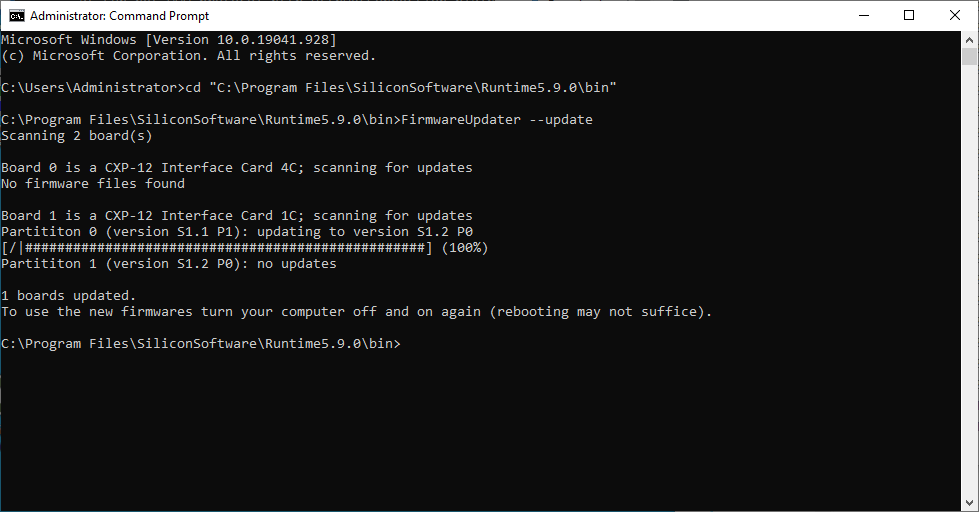
更新プロセスが終了すると、簡単な概要が表示され、コンピューターの電源を切るように求めるメッセージが出力されます。電源投入時にファームウェアがロードされるため、更新されたファームウェアをアクティブにするには、コンピューターの電源を入れ直す必要があります。
古いファームウェアバージョンへのダウングレード#
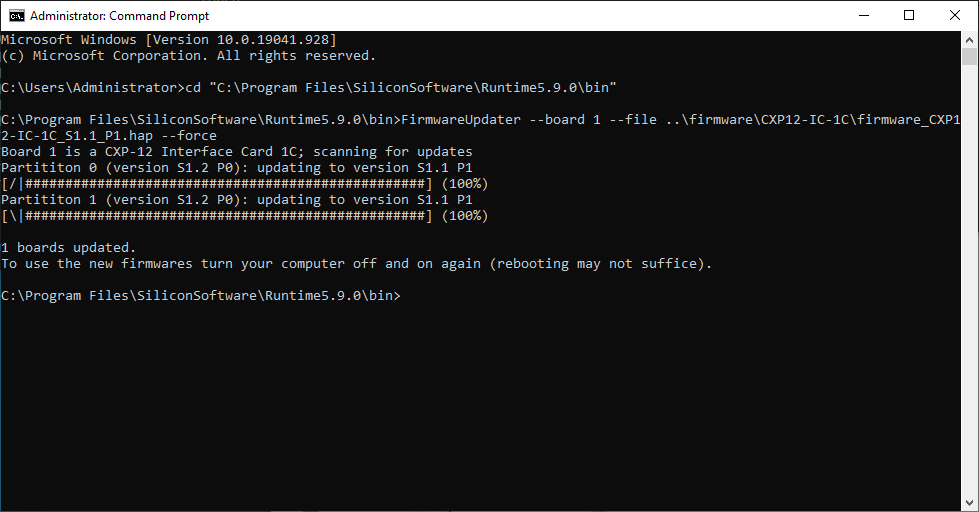
フレームグラバーに特定の古いファームウェアバージョンが必要な場合は、パラメータ --board <id>, --file <path> およびオプション --force を組み合わせて使用する必要があります:
FirmwareUpdater --board 0 --file ..\firmware\CXP12-IC-1C\firmware.hap --force
FirmwareUpdater の出力は、アップデートプロセス中と同じです。
情報
フレームグラバーのファームウェアのダウングレードは、フレームグラバーにインストールされている静的バージョンに一致するアプレットを提供する Framegrabber SDK を使用する場合にのみ可能です。